Appearance
Starting a Workflow
Who can start: Users with the position "Document Controller".
Video Walkthrough
Understand the sending workflow process.
How to Start
- Navigate to the transmittal or letter detail page.
- Go to the Workflow tab.
- Click "Start Workflow".
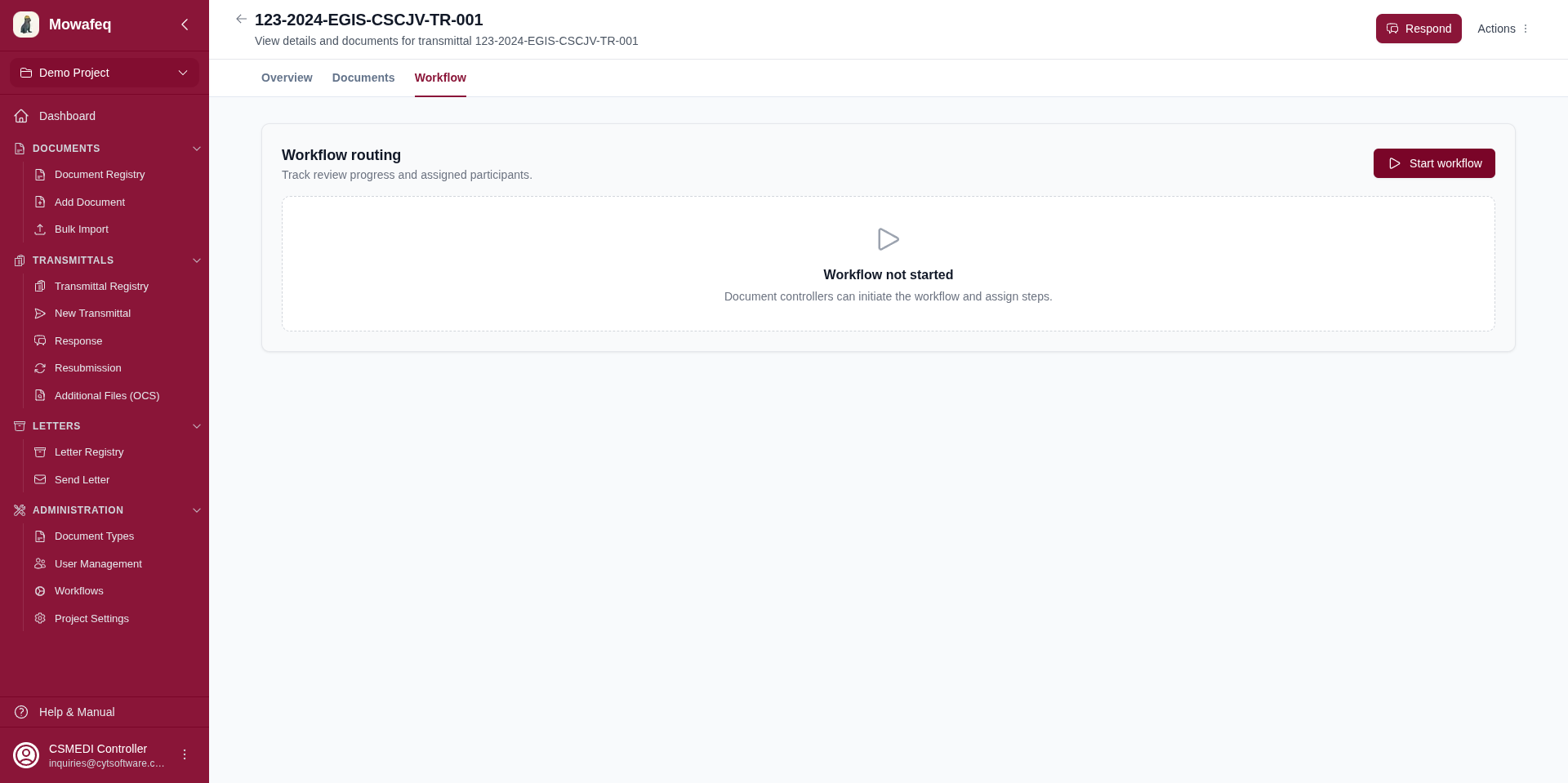
- Choose the mode:
- Preset: Select a template from the dropdown.
- Dynamic: Add one or more steps, each with a title and at least one assignee.
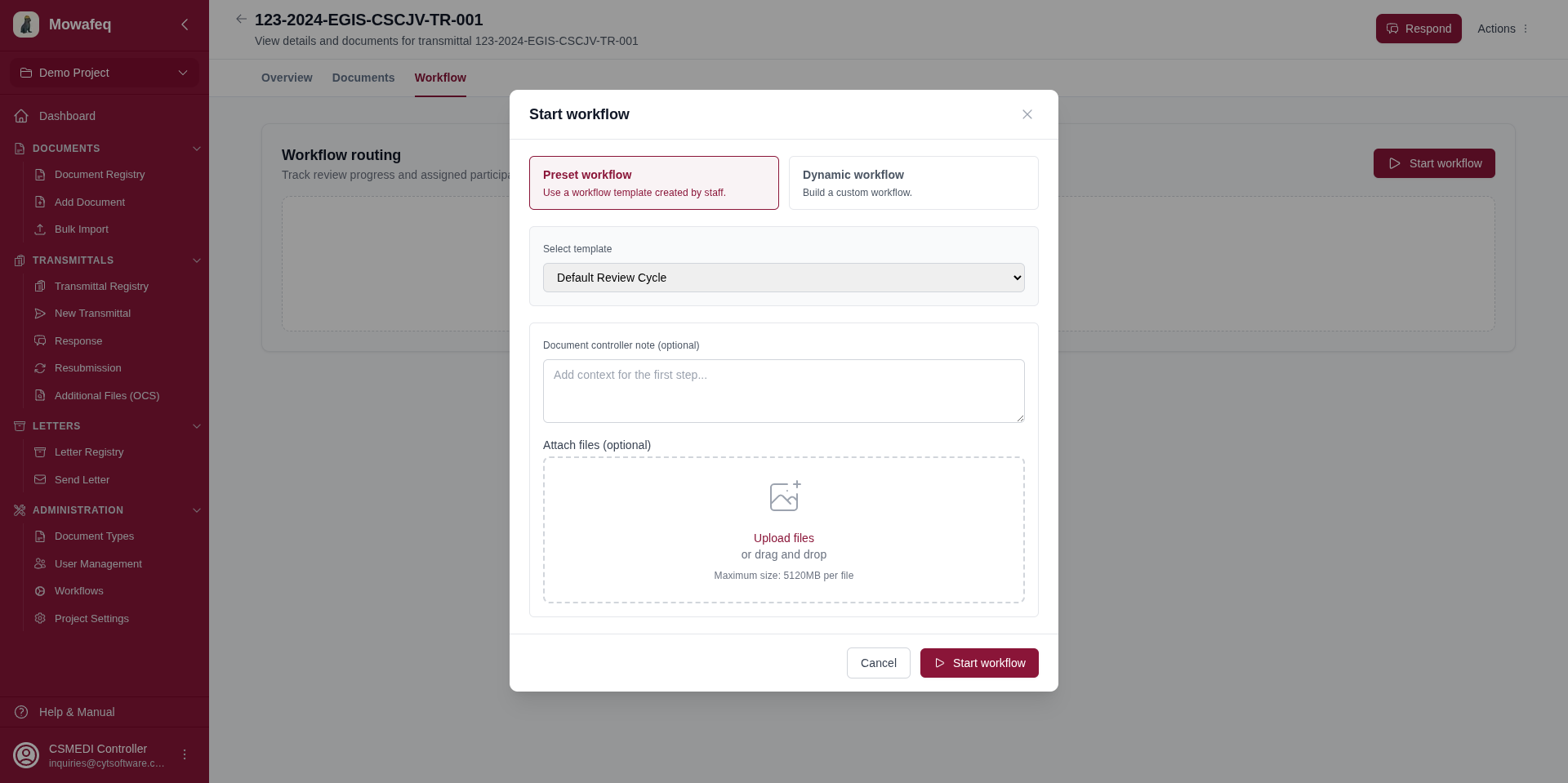
- Optionally add a document controller note and attach files.
- Click "Start".
What Happens
- A "Document Controller" step is auto-created and marked as complete (step 1).
- The first review step (step 2) activates.
- All assigned participants receive email notifications.
- If no review steps were added, the workflow completes immediately.
Automatic Completion
Workflows also complete automatically when a transmittal is sent (for the sender's workflow), when every document on a transmittal has a response (for all workflows on it), or when a transmittal is closed, superseded, or withdrawn. A workflow on a letter completes when that letter is acknowledged or replied to.